
Squarespace is built for launching a polished site fast, not for teams collaborating on the content behind it. The moment more than one person needs to plan blog posts, manage a product list, or track events, someone opens a spreadsheet — and that spreadsheet drifts out of sync with the live site within days. This guide covers how to sync Squarespace and Airtable without code, so both stay current automatically, in either direction.
Why sync Squarespace with Airtable
Squarespace is where your site lives; Airtable is where teams plan, review, and collaborate without needing a Squarespace seat. Syncing the two lets you:
- Let marketing or content teams draft and organize Squarespace pages, products, or events in Airtable, without giving them Squarespace admin access.
- Keep a product catalog or event calendar in Airtable as the shared source of truth, feeding a live Squarespace site.
- Pull Squarespace store or form data into Airtable for reporting, without a manual CSV export every week.
Copy-pasting between the Squarespace back end and an Airtable base works exactly once. It breaks down the first time either side changes without the other knowing.
What you need before you start
- A Squarespace site with a Products, Events, or Blog collection you want to sync.
- An Airtable base with a table shaped to match — columns for title, status, price, images, and any custom fields.
- A Synquake account — sign up free at app.synquake.com.
No developer or Squarespace code injection required. Synquake connects to the Squarespace and Airtable APIs directly.
Step-by-step: connecting Squarespace and Airtable
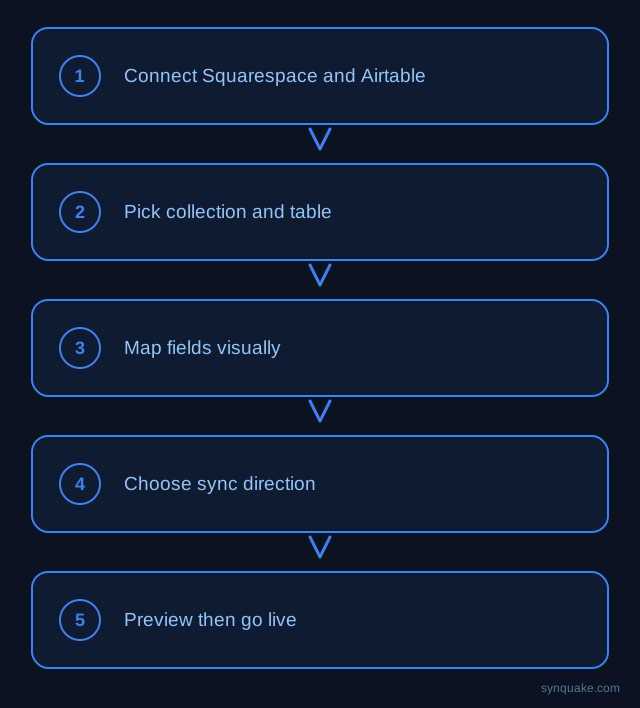
1. Connect both accounts
Add Squarespace and Airtable as connections in Synquake. Squarespace authorizes through your site’s API credentials; Airtable through a personal access token. No API keys get emailed around the team.
2. Pick your collection and table
Choose which Squarespace collection maps to which Airtable table — a “Products” collection to a “Catalog” table, or an “Events” collection to a “Calendar” table are common starting points.
3. Map fields visually
Draw the connections between Squarespace fields (title, price, description, images) and Airtable columns. Field types don’t need to match exactly up front — Synquake handles the conversion, including Squarespace image fields mapping to Airtable attachments.
4. Choose sync direction
Pick one-way (Squarespace → Airtable, for teams that only report or plan from Airtable) or two-way sync, so edits made in Airtable — a price change, an updated description — push back into the live Squarespace site. Two-way sync is included on every Synquake plan, not a paid upgrade.
5. Preview before going live
Run a preview sync against a handful of real items first. Confirm titles, prices, and images land in the correct Airtable columns before enabling continuous sync.
6. Turn on live sync
Once the preview checks out, enable scheduled or real-time sync. From here, changes on either side flow automatically — no manual export or re-upload step.
Common Squarespace–Airtable sync scenarios
- Content planning: Editorial teams draft and organize Squarespace blog content in Airtable, syncing published items back to the live site.
- Product catalog management: A merchandising team manages pricing and inventory in Airtable, which syncs outward to the Squarespace store.
- Event and booking tracking: Squarespace events or form submissions sync into Airtable for reporting, without a manual export.
- Multi-channel presence: Teams running a Squarespace site alongside a Webflow, WordPress, or Shopify presence use Airtable as the shared source of truth across all of them.
Avoiding common sync problems
- Field type mismatches: Confirm Squarespace rich-text fields map to an Airtable long-text field, not a single-line field, before enabling two-way sync — truncated formatting is the most common early complaint.
- Duplicate items: Set a stable matching field (SKU, slug, or Squarespace item ID) so re-running a sync updates existing rows instead of creating duplicates.
- Image handling: Squarespace media assets sync as URLs; make sure the target Airtable attachment field is configured to fetch them rather than leaving broken links.
- Publish state: Decide whether draft Squarespace items should sync to Airtable at all, or only published ones — this avoids surfacing unfinished content to planning teams.
Beyond Squarespace and Airtable
Synquake’s sync is any-to-any across seven platforms — Airtable, Webflow, WordPress, Supabase (including Lovable-built apps), Wix, Shopify, and Squarespace — plus CSV import/export on every plan. The same Airtable base you sync with Squarespace can also feed a Webflow site, a Shopify store, or a Supabase-backed app, without building a separate integration for each. See the full integrations page for details, or read how it works for the connection, mapping, and monitoring model.
Related reading
- How to Sync Wix and Airtable Without Code
- How to Sync Shopify Products to Airtable Without Code
- How to Sync Airtable and Webflow Without Code
Get started
Syncing Squarespace and Airtable without code takes minutes to set up and replaces the manual copy-paste cycle for good. Start your first Squarespace-to-Airtable sync free and preview it against real collection data before going live.