Contentful and Webflow both call themselves a CMS, but they solve different halves of the same problem. Contentful models structured content for any channel through its API; Webflow designs and hosts the actual pages people visit, with its own CMS Collections driving the dynamic content on them. Teams that use both end up re-entering the same entry twice — once in Contentful’s structured model, once in a Webflow Collection item — and the two drift apart the moment either side changes. This guide covers how to sync Contentful and Webflow without code, in either direction.
Why sync Contentful with Webflow
Contentful and Webflow each do one job well, and most teams running both want the two to share data rather than duplicate it:
- Structured content in Contentful, published pages in Webflow. Model content once in Contentful — with references, rich text, and reusable content types — then push finished entries into Webflow CMS Collections so the marketing site renders them with Webflow’s native design tools.
- Multi-channel content, one Webflow site as a consumer. Contentful is often the system of record feeding a mobile app, another site, or an internal tool; syncing lets the public Webflow site pull from the same entries instead of maintaining a separate copy.
- Editorial handoff without manual re-entry. Writers work in whichever tool fits the workflow — Contentful’s structured editor or Webflow’s visual Designer — and the sync keeps the other side current automatically.
A one-time CSV export or copy-paste pass covers a single migration moment. It breaks down once either side keeps publishing new entries or edits weekly, which is the normal state for an active content team.
What you need before you start
- A Contentful space with the content model (content types, fields, references) you want to sync.
- A Webflow site with a CMS Collection shaped to mirror that content type — fields, rich text, and image fields as needed.
- A Synquake account — sign up free at app.synquake.com.
No developer, no custom Contentful app, and no Webflow API scripting required. Synquake connects to the Contentful and Webflow CMS APIs directly.
Step-by-step: connecting Contentful and Webflow
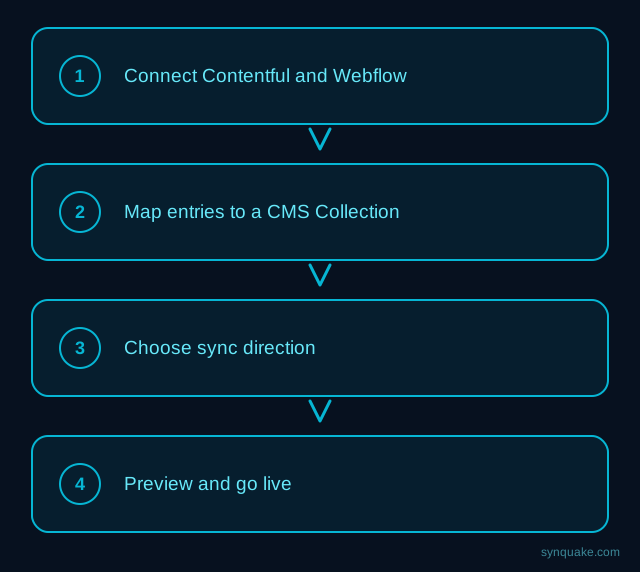
1. Connect both accounts
Add Contentful and Webflow as connections in Synquake. Contentful authorizes with a space API token; Webflow authorizes through OAuth on the site you choose. No credentials get passed around the team manually.
2. Pick what to sync
Choose the Contentful content type (e.g. Article, Product, Page) and the Webflow CMS Collection you want it connected to. Most teams start with one content type, then add more once the mapping is confirmed.
3. Map fields visually
Draw the connections between Contentful fields (short text, rich text, references, media) and the matching Webflow Collection fields (plain text, rich text, reference, image). Field types don’t need to match exactly up front — Synquake handles the conversion, including Contentful rich text rendering into Webflow’s rich text field.
4. Choose sync direction
Pick one-way (Contentful → Webflow, the common case when Contentful is the system of record) or two-way sync, so an edit made on either side pushes to the other automatically. Two-way sync is included on every Synquake plan, not a paid upgrade.
5. Preview before going live
Run a preview sync against a handful of real entries first. Confirm rich text formatting, references, and images land correctly in the Webflow Collection before enabling continuous sync.
6. Turn on live sync
Once the preview checks out, enable scheduled or real-time sync. From here, a new Contentful entry or edit flows into the matching Webflow CMS item automatically, with no manual copy-paste step.
Common Contentful–Webflow sync scenarios
- Marketing site on Webflow, content modeled in Contentful. Editors manage structured entries in Contentful; the Webflow site renders them through CMS Collections without anyone touching the Webflow Designer for routine content updates.
- Multi-channel publishing. The same Contentful entries feed a mobile app or another site alongside the Webflow marketing site, all from one source of truth instead of three manual copies.
- Migrating off Webflow-only content. Teams moving structured content into Contentful for better modeling can sync it back into Webflow during the transition, so the live site stays current while the migration is in progress.
- Localized content. Contentful’s locale fields can sync into separate Webflow Collection items per language, keeping translated pages aligned with the source entries.
Avoiding common sync problems
- Reference fields: Confirm how Contentful’s linked entries map to Webflow’s reference fields before enabling two-way sync — a reference pointing to an entry that hasn’t synced yet is the most common cause of a missing link on the Webflow side.
- Rich text formatting: Preview a few entries with embedded links, lists, and images to confirm Contentful’s rich text converts cleanly into Webflow’s rich text field rather than losing formatting.
- Duplicate items: Set a stable matching field (a Contentful entry ID or slug) so re-running a sync updates the existing Webflow CMS item instead of creating a new one.
- Collection item limits: Webflow CMS Collections cap the number of items per site plan — check that limit against your Contentful content volume before syncing an entire space in one pass.
Beyond Contentful and Webflow
Synquake’s sync is any-to-any across nine platforms — Airtable, Webflow, WordPress, Supabase (including Lovable-built apps), Wix, Shopify, Squarespace, Google Sheets, and Contentful — plus CSV import/export on every plan. The same Contentful space you sync with Webflow can also feed an Airtable base for editorial planning, or a Google Sheet for reporting, without building a separate integration for each. See the full integrations page for details, or read how it works for the connection, mapping, and monitoring model.
Related reading
- How to Sync Contentful and Airtable Without Code
- How to Sync Wix and Webflow Without Code
- How to Sync Google Sheets and Webflow CMS Without Code
Get started
Syncing Contentful and Webflow without code removes the manual re-entry step between structured content and published pages. Start your first Contentful-to-Webflow sync free and preview it against real entries before going live.