
Google Sheets is where most teams start tracking anything — a lead list, an inventory count, a budget someone shared once and everyone still edits. Airtable is where that same data grows up: linked records, views, automations. The problem is teams rarely migrate cleanly from one to the other; they end up running both, and the two drift apart within days. This guide covers how to sync Google Sheets and Airtable without code, so either side can stay the working copy without the other going stale.
Why sync Google Sheets with Airtable
Google Sheets and Airtable aren’t really competing for the same job — they’re good at different things, which is exactly why teams end up needing both connected:
- Finance, ops, or sales teams who live in spreadsheets can keep editing Google Sheets, while product or engineering teams consume the same data in Airtable’s linked-record structure.
- A Google Sheet fed by a form, an export, or another tool becomes a live input to an Airtable base, instead of a one-time CSV import that’s outdated by the next morning.
- An Airtable base stays the structured source of truth, while a Google Sheet mirrors it for anyone who wants a lightweight, filterable view without an Airtable seat.
Re-exporting a CSV every time someone asks “is this still current?” doesn’t scale past a handful of updates. Once either sheet or base changes daily, you need an actual sync, not a manual habit.
What you need before you start
- A Google Sheet with a clear header row and consistent columns (no merged cells or freeform notes rows).
- An Airtable base with a table shaped to match — matching columns for the fields you want to sync.
- A Synquake account — sign up free at app.synquake.com.
No Apps Script, Zapier chains, or Airtable automations to maintain. Synquake connects to the Google Sheets and Airtable APIs directly.
Step-by-step: connecting Google Sheets and Airtable
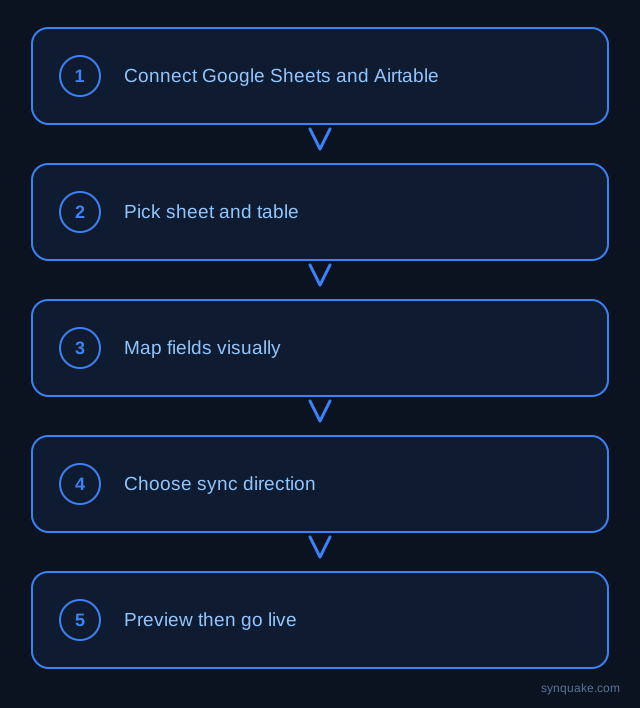
1. Connect both accounts
Add Google Sheets and Airtable as connections in Synquake. Google Sheets authorizes through Google OAuth; Airtable through a personal access token. Neither requires sharing a service-account key around the team.
2. Pick your sheet and table
Choose which Google Sheet — and which tab within it — maps to which Airtable table. A “Leads” tab syncing to a “Contacts” table, or an “Inventory” tab syncing to a “Products” table, are typical starting points.
3. Map fields visually
Draw the connections between spreadsheet columns and Airtable fields. Types don’t need to match first — Synquake handles the conversion, including turning a comma-separated Sheets column into an Airtable multi-select or linked-record field.
4. Choose sync direction
Pick one-way (Sheets → Airtable, if the spreadsheet is just an intake form or export) or two-way sync, so edits made in Airtable flow back into the sheet for anyone who only works there. Two-way sync is included on every Synquake plan, not a paid upgrade.
5. Preview before going live
Run a preview sync against real rows first. Confirm values land in the right Airtable fields — number formatting and date columns are the two places spreadsheet exports most often go wrong.
6. Turn on live sync
Once the preview looks right, enable scheduled or real-time sync. From here, edits on either side propagate automatically — nobody has to remember to re-export or re-paste.
Common Google Sheets–Airtable sync scenarios
- Spreadsheet intake, Airtable operations: A form or manual entry lands in Google Sheets; Synquake syncs new rows into Airtable, where the rest of the team works with linked records and views.
- Airtable as source of truth, Sheets as a lightweight view: Teams that live in spreadsheets get a synced, read-friendly Google Sheet fed from Airtable, without needing an Airtable login.
- Inventory or pricing sync: A Google Sheet maintained by a supplier or finance team syncs into an Airtable-driven catalog, which can then feed a live site through Synquake’s other integrations.
- Reporting rollups: Data collected across multiple Airtable bases syncs into a single Google Sheet for teams that prefer spreadsheet-native pivot tables and charts.
Avoiding common sync problems
- Inconsistent tabs and headers: Keep the header row stable and avoid renaming columns after the sync is live — a renamed column reads as a new field, not an update to the old one.
- Formulas vs. static values: Decide whether formula-driven cells should sync as computed values or be excluded — syncing a live formula result usually works better than trying to replicate the formula in Airtable.
- Duplicate rows: Set a stable matching field (an ID, email, or SKU column) so re-running a sync updates existing Airtable records instead of creating duplicates.
- Row vs. record mismatches: Blank rows, merged cells, or notes rows in a spreadsheet can create empty Airtable records — clean the sheet’s structure before the first sync, not after.
Beyond Google Sheets and Airtable
Synquake’s sync is any-to-any across eight platforms — Airtable, Webflow, WordPress, Supabase (including Lovable-built apps), Wix, Shopify, Squarespace, and Google Sheets — plus CSV import/export on every plan. The same Google Sheet you sync with Airtable can also feed a Webflow site, a Shopify catalog, or a Supabase-backed app, without a separate integration for each. See the full integrations page for details, or read how it works for the connection, mapping, and monitoring model.
Related reading
- How to Sync Wix and Airtable Without Code
- How to Sync Shopify Products to Airtable Without Code
- Automated Field Matching for Easier Integrations
Get started
Syncing Google Sheets and Airtable without code takes minutes to set up and replaces the copy-paste habit for good. Start your first Google Sheets-to-Airtable sync free and preview it against real rows before going live.