
Squarespace’s editor is built for hand-crafting a small number of pages, not for bulk-managing a catalog or content list that changes every week. Teams that outgrow manual entry usually end up drafting products, listings, or event details in a Google Sheet first — then re-typing them into Squarespace one by one. This guide covers how to sync Google Sheets and Squarespace without code, so the spreadsheet stays a live input (or output) instead of a copy-paste chore.
Why sync Google Sheets with Squarespace
- Product, inventory, or content teams can draft and edit rows in a familiar spreadsheet without needing Squarespace admin training.
- A Google Sheet used for planning products, events, or blog metadata becomes a live source for Squarespace instead of manual re-entry every time it changes.
- Squarespace store or content data can flow back out to a Google Sheet, giving finance, ops, or marketing a filterable view without logging into the Squarespace dashboard.
Squarespace doesn’t offer a native two-way spreadsheet connection, and one-time CSV-style imports go stale the moment either side changes — which, for an active site, is often daily.
What you need before you start
- A Google Sheet with a clear header row and consistent columns for the fields you’re syncing (title, price, SKU, description, etc.).
- A Squarespace site with admin access to authorize a connection.
- A Synquake account — sign up free at app.synquake.com.
No Zapier-style per-row automations or repeated manual CSV exports required. Synquake connects to the Google Sheets and Squarespace APIs directly.
Step-by-step: connecting Google Sheets and Squarespace
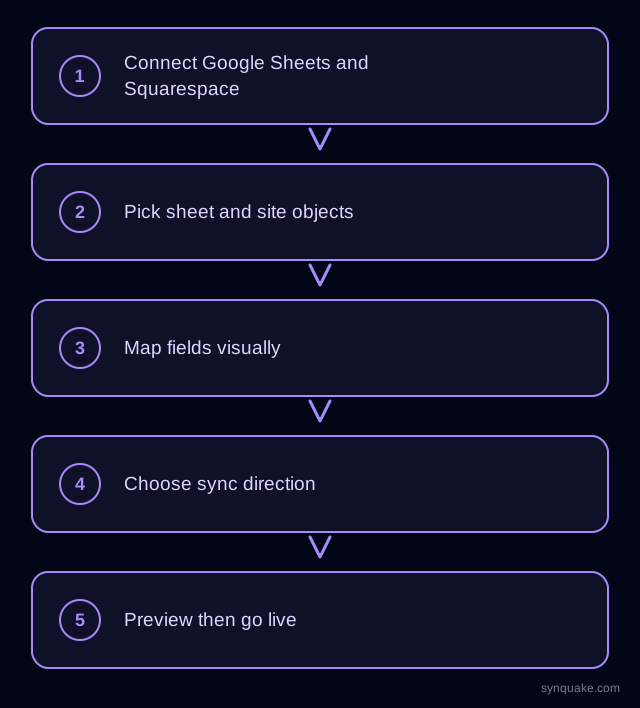
1. Connect both accounts
Add Google Sheets and Squarespace as connections in Synquake. Google Sheets authorizes through Google OAuth; Squarespace authorizes through its own OAuth flow. Neither requires sharing a raw API key with your whole team.
2. Pick your sheet and site objects
Choose which Google Sheet — and which tab — maps to which Squarespace object, such as a “New Products” tab syncing into Squarespace Products, or an “Events” tab syncing into a Squarespace events collection.
3. Map fields visually
Draw the connections between spreadsheet columns and Squarespace fields (title, price, SKU, description, images, tags). Field types don’t need to match up front — Synquake handles the conversion, including turning a comma-separated Sheets column into Squarespace tags.
4. Choose sync direction
Pick one-way (Sheets → Squarespace, if the spreadsheet is where new listings get drafted) or two-way sync, so live Squarespace data — like current stock or published status — flows back into the sheet for anyone who only works there. Two-way sync is included on every Synquake plan, not a paid upgrade.
5. Preview before going live
Run a preview sync against a handful of real rows first. Confirm titles, prices, and images land correctly — image URLs and price formatting are the two most common places a spreadsheet-to-Squarespace sync goes wrong.
6. Turn on live sync
Once the preview looks right, enable scheduled or real-time sync. From here, updates on either side — a new row in the sheet, an edit in Squarespace — propagate automatically.
Common Google Sheets–Squarespace sync scenarios
- Spreadsheet product drafting: A team drafts new products or seasonal pricing in Google Sheets; Synquake pushes approved rows into Squarespace as live listings.
- Event or listing calendars: An events or bookings sheet maintained by a non-technical team syncs into a Squarespace collection without giving them full site access.
- Read-only reporting view: Current Squarespace product or order data syncs out to a Google Sheet for finance or ops teams who prefer spreadsheet views to the Squarespace dashboard.
- Multi-channel catalog planning: A single Google Sheet feeds a Squarespace store plus a separate storefront on Shopify, Webflow, or WordPress, keeping pricing and descriptions consistent everywhere.
Avoiding common sync problems
- Missing match keys: Use a stable SKU or item ID column as the match key so re-running a sync updates existing Squarespace items instead of creating duplicates.
- Image handling: Point image columns to public, direct image URLs — Squarespace can’t fetch images that require login or expire.
- Price and currency formatting: Normalize price columns (no currency symbols, consistent decimals) before the first live sync so Squarespace doesn’t reject the update.
- Overlapping edits: If both the sheet and Squarespace can change the same fields, pick one system as the authority, or rely on last-modified timestamps to resolve conflicts.
Beyond Google Sheets and Squarespace
Synquake’s sync is any-to-any across eight platforms — Airtable, Webflow, WordPress, Supabase (including Lovable-built apps), Wix, Shopify, Squarespace, and Google Sheets — plus CSV import/export on every plan. The same Google Sheet you sync with Squarespace can also feed an Airtable base, a Webflow site, or a Shopify store, without a separate integration for each. See the full integrations page for details, or read how it works for the connection, mapping, and monitoring model.
Related reading
- How to Sync Google Sheets and Shopify Without Code
- How to Sync Squarespace and Airtable Without Code
- Shopify vs Squarespace for a No-Code Data Stack
Get started
Syncing Google Sheets and Squarespace without code takes minutes to set up and replaces manual re-entry for good. Start your first Google Sheets-to-Squarespace sync free and preview it against real listing data before going live.