
A lot of Wix sites start with content someone already has in a spreadsheet — a product list, a staff directory, an events calendar, a pricing table. Getting it onto the site usually means opening the Wix CMS and retyping each item, then remembering to do it again every time the sheet changes. This guide covers how to sync Google Sheets and Wix without code, so spreadsheet rows become — and stay — live Wix CMS Collection items.
Why sync Google Sheets with Wix
Google Sheets and Wix are good at different jobs, and most teams would rather keep using both than force one to replace the other:
- Non-technical staff keep editing data in a familiar spreadsheet — no Wix editor seat, no Velo code — while the live site reflects changes automatically.
- A sheet fed by a form, a supplier export, or another internal tool becomes a live source for a Wix CMS Collection, instead of a one-time import that drifts out of date.
- Wix stays the design and publishing layer — themes, pages, SEO settings — while the sheet stays the easy-to-edit data layer behind it.
Manually re-typing rows into the Wix CMS works for a short, static list. It stops working the moment a catalog, directory, or events list changes often enough that someone has to remember to update the sheet and the site separately, every time.
What you need before you start
- A Google Sheet with a stable header row — one column per Wix CMS field (title, description, price, image URL, status, etc.) you want to populate.
- A Wix site with at least one CMS Collection shaped to receive that data (products, events, team members, or a custom collection).
- A Synquake account — sign up free at app.synquake.com.
No Wix Velo scripts, no manual CSV re-imports every time the sheet changes. Synquake connects to the Google Sheets and Wix APIs directly.
Step-by-step: connecting Google Sheets and Wix
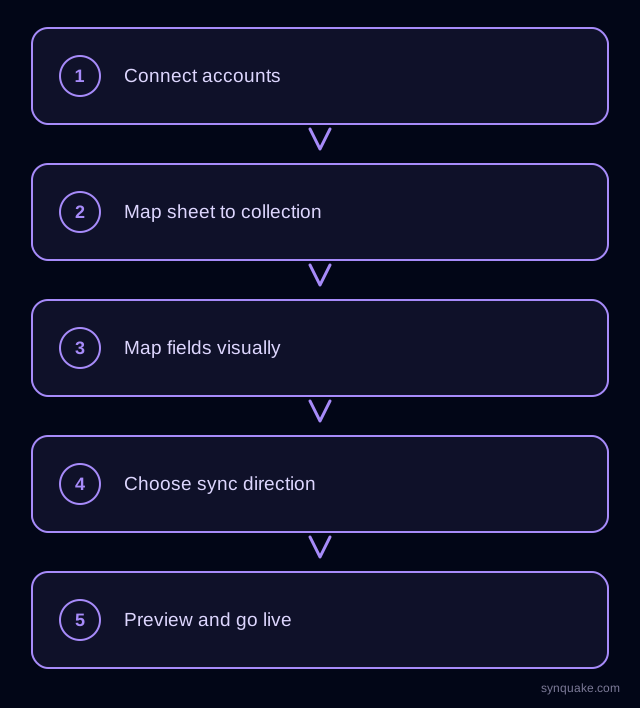
1. Connect both accounts
Add Google Sheets and Wix as connections in Synquake. Google Sheets authorizes through Google OAuth; Wix connects through OAuth from your site dashboard. Neither requires a developer to hand-wire API keys.
2. Pick your sheet and collection
Choose which Google Sheet — and which tab — maps to which Wix CMS Collection. A “Products” tab syncing to a Products collection, or an “Events” tab syncing to an Events collection, are typical starting points.
3. Map fields visually
Draw the connections between spreadsheet columns and Wix CMS fields. A text column can map to the item title or description; a URL column can map to a Wix image field, with Synquake fetching and attaching the image rather than storing a bare link; other columns map to price, status, or any custom field your collection already defines.
4. Choose sync direction
Pick one-way (Sheets → Wix, for content authored only in the spreadsheet) or two-way, so edits made directly in the Wix CMS flow back into the sheet too. Two-way sync is included on every Synquake plan, not a paid add-on.
5. Preview before going live
Run a preview sync against real rows before publishing anything. Confirm images resolve and fields land where your Wix page’s repeater or dynamic page actually reads them — that’s the step most spreadsheet-to-Wix syncs skip, and regret.
6. Turn on live sync
Once the preview looks right, enable scheduled or real-time sync. From there, new rows become new CMS items and edited rows update existing ones — nobody has to open the Wix CMS to publish a change.
Common Google Sheets–Wix sync scenarios
- Spreadsheet-managed product or service listings: Ops or marketing maintains the list in Google Sheets; Synquake keeps the live Wix Collection current without anyone touching the Wix CMS directly.
- Events and bookings calendars: A sheet fed by a planning process or another tool stays the source of truth, syncing into a Wix Events or custom Collection automatically.
- Staff or location directories: A sheet edited by HR or an office manager syncs into a Wix team or locations Collection, so the public page stays accurate without a manual update pass.
- Feed-driven catalogs: A sheet populated by a supplier export becomes the live input for a Wix Collection, without a developer building a one-off importer.
Avoiding common sync problems
- Unstable headers: Keep column headers fixed once sync is live — renaming a header reads as a new field, not an update to the old one.
- Field type mismatches: Confirm a Wix rich-text field maps to a long-text sheet column, not a single-line one, before enabling two-way sync — truncated formatting is the most common early complaint.
- Image fields: Use direct, publicly accessible image URLs in the sheet — a link behind a login or a private Google Drive share won’t resolve into a Wix image field.
- Duplicate items: Set a stable matching column (a slug, SKU, or ID) so re-running a sync updates existing Collection items instead of creating duplicates.
Beyond Google Sheets and Wix
Synquake’s sync is any-to-any across eight platforms — Airtable, Webflow, WordPress, Supabase (including Lovable-built apps), Wix, Shopify, Squarespace, and Google Sheets — plus CSV import/export on every plan. The same Google Sheet feeding your Wix Collection can also feed a Shopify catalog, a Webflow Collection, or an Airtable base, without a separate integration for each. See the full integrations page for details, or read how it works for the connection, mapping, and monitoring model.
Related reading
- How to Sync Wix and Airtable Without Code
- How to Sync Google Sheets and Webflow CMS Without Code
- How to Sync Google Sheets and Shopify Without Code
Get started
Syncing Google Sheets and Wix without code takes minutes to set up and turns your spreadsheet into a live content source for your site. Start your first Google Sheets-to-Wix sync free and preview it against real rows before going live.