
Supabase gives a Postgres database to teams that don’t want to run their own — including a lot of apps built on Lovable, where the database is Supabase under the hood. The gap is that whoever owns the data — ops, support, a founder tracking signups — usually isn’t the person comfortable running SQL. They want a spreadsheet. This guide covers how to sync Google Sheets and Supabase without code, so a spreadsheet can read from and write to a live Postgres table without anyone touching the database console.
Why sync Google Sheets with Supabase
Google Sheets and Supabase solve different problems, and most teams end up needing both talking to each other:
- A non-technical team edits a Google Sheet — pricing, content, a status list — while the app reads that same data live from its Supabase tables, no CSV import or developer hand-off required.
- Signups, orders, or form submissions land in a Supabase table; a synced Google Sheet gives ops or support a familiar, filterable view without a Supabase login or a BI tool.
- A Lovable-built app’s Supabase database stays the single source of truth for the app, while a Google Sheet mirrors specific tables for anyone who needs to review or edit rows outside the app itself.
Exporting a table to CSV and re-importing it each time something changes works until it doesn’t — usually the week someone edits the “old” copy of the sheet. A real sync keeps both sides current without that manual step.
What you need before you start
- A Supabase project with the table(s) you want to sync, and a stable primary key or unique column per table (an
id, email, or SKU field). - A Google Sheet with a header row that matches the columns you want to sync — same idea applies in reverse if the sheet is the source.
- A Synquake account — sign up free at app.synquake.com.
No database functions, webhooks, or custom scripts to write and maintain yourself. Synquake connects to the Supabase and Google Sheets APIs directly.
Step-by-step: connecting Google Sheets and Supabase
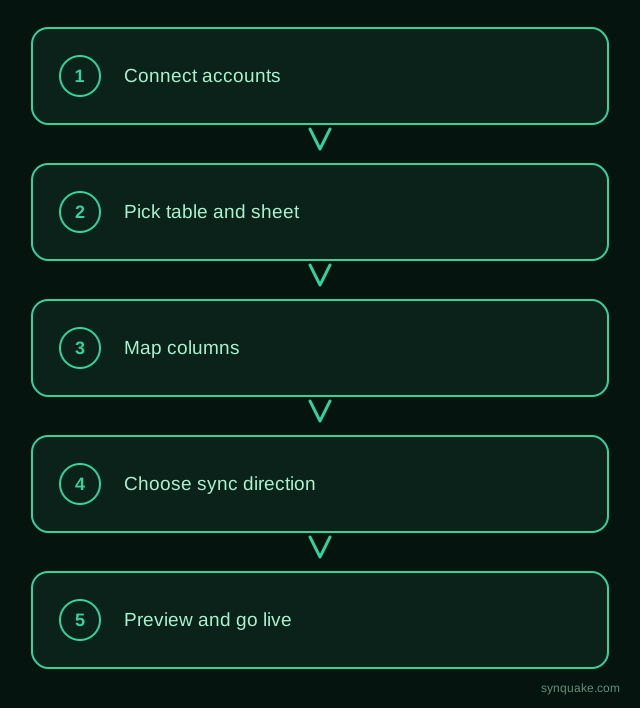
1. Connect both accounts
Add Supabase and Google Sheets as connections in Synquake. Supabase connects with a project URL and API key; Google Sheets authorizes through Google OAuth. Neither requires exposing your database password or a service-role key to a third-party script.
2. Pick your table and sheet
Choose which Supabase table maps to which Google Sheet tab — a customers table syncing to a “Customers” tab, or a products table feeding a pricing sheet, are common starting points.
3. Map columns visually
Draw the connections between Postgres columns and spreadsheet columns. Types don’t need to match ahead of time — Synquake handles the conversion, including turning a Postgres timestamp into a readable date in the sheet and back.
4. Choose sync direction
Pick one-way (Supabase → Sheets, for a read-only reporting view) or two-way, so edits made in the spreadsheet write back into Postgres for anyone who only works in Sheets. Two-way sync is included on every Synquake plan, not a paid add-on.
5. Preview before going live
Run a preview sync against real rows first. Confirm values land in the right columns and types — numeric and boolean columns are the most common place a spreadsheet edit doesn’t match what Postgres expects.
6. Turn on live sync
Once the preview checks out, enable scheduled or real-time sync. From here, a row added in Sheets or a row updated in Supabase propagates automatically, without anyone exporting or re-pasting anything.
Common Google Sheets–Supabase sync scenarios
- Spreadsheet edits, app reads live: Content, pricing, or configuration gets edited in a Google Sheet by a non-technical team member, and a Lovable or custom-built app reads the current values straight from Supabase.
- App data, spreadsheet review: Signups, orders, or support tickets land in Supabase from the app; a synced Google Sheet gives a non-engineer team a familiar place to review, filter, or annotate the same rows.
- Operational allow/block lists: A Google Sheet maintained by ops (feature flags, a waitlist, an allow-list) syncs into a Supabase table the app queries directly, with updates reflected within minutes.
- Reporting rollups: Supabase tables from one or more projects sync into a single Google Sheet for teams that prefer spreadsheet-native pivot tables and charts over a SQL dashboard.
Avoiding common sync problems
- Missing or inconsistent primary keys: Without a stable unique column, repeated syncs can create duplicate Postgres rows instead of updating existing ones — set a matching key (an ID, email, or SKU) before the first sync.
- Schema drift on the Postgres side: Adding or renaming a Supabase column after the sync is live can silently stop that column from syncing — update the field mapping at the same time you change the schema.
- Row Level Security blocking writes: If RLS policies are enabled on a table, make sure the credentials Synquake uses have permission to read and write the rows you expect to sync, or writes will fail silently at the database level.
- Type mismatches: A spreadsheet column with mixed text and numbers can fail to write into a strictly typed Postgres column — keep spreadsheet columns consistently typed before mapping them.
Beyond Google Sheets and Supabase
Synquake’s sync is any-to-any across eight platforms — Airtable, Webflow, WordPress, Supabase (including Lovable-built apps), Wix, Shopify, Squarespace, and Google Sheets — plus CSV import/export on every plan. The same Supabase table you sync with Google Sheets can also feed a Webflow site, a WordPress install, or an Airtable base, without a separate integration for each. See the full integrations page for details, or read how it works for the connection, mapping, and monitoring model.
Related reading
- Lovable Supabase Sync: Build AI Apps on Live Data
- Airtable vs Supabase: Sync or Migrate?
- How to Sync Google Sheets and Airtable Without Code
Get started
Syncing Google Sheets and Supabase without code takes minutes to set up and gives non-technical teammates a safe way to read and edit live app data. Start your first Google Sheets-to-Supabase sync free and preview it against real rows before going live.