
Contentful holds structured content behind an API; Google Sheets is where non-developers actually want to read and edit that content without logging into a CMS. Marketing, content ops, and localization teams keep ending up with a spreadsheet export of “what’s in Contentful right now” that’s stale within a day. This guide covers how to sync Contentful and Google Sheets without code, in either direction, so the spreadsheet stops being a one-time snapshot.
Why sync Contentful with Google Sheets
Contentful and Google Sheets solve different problems, and most teams running both want them connected rather than copied by hand:
- Spreadsheet review for structured content. Editors, translators, or stakeholders who don’t have (or want) a Contentful seat can review and bulk-edit entries in a familiar Google Sheet instead of the Contentful web app.
- Bulk content operations. Adding or updating dozens of entries is often faster in a spreadsheet — fill-down formulas, find-and-replace, sorting — than one entry at a time in Contentful’s UI, then syncing the result back in.
- Reporting and audits. A Google Sheet synced from Contentful gives ops or SEO teams a live, filterable view of every entry’s status, locale, or last-updated date without querying the Contentful API directly.
A manual CSV export covers one moment in time. It stops being useful the moment either the Contentful space or the spreadsheet keeps changing, which is the normal case for an active content team.
What you need before you start
- A Contentful space with the content model (content types, fields, references) you want to sync.
- A Google Sheet with a header row and consistent columns matching the fields you care about.
- A Synquake account — sign up free at app.synquake.com.
No developer, no custom Contentful app, and no Apps Script required. Synquake connects to the Contentful and Google Sheets APIs directly.
Step-by-step: connecting Contentful and Google Sheets
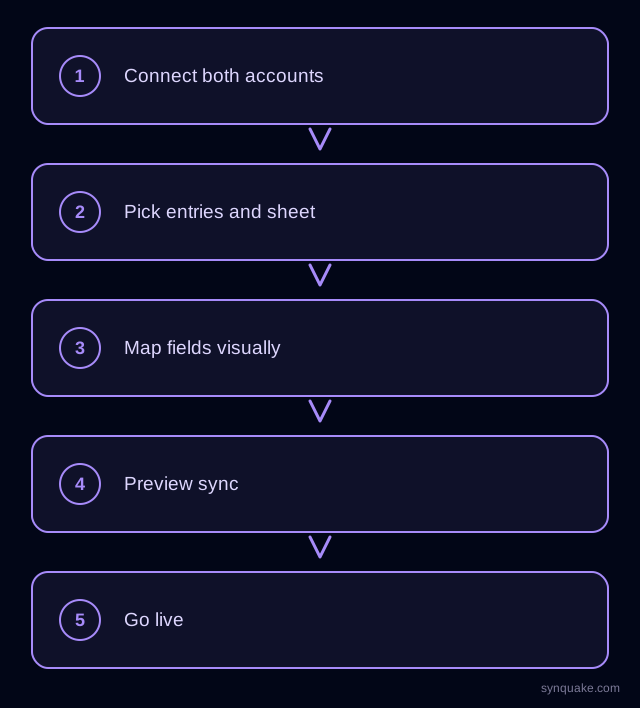
1. Connect both accounts
Add Contentful and Google Sheets as connections in Synquake. Contentful authorizes with a space API token; Google Sheets authorizes through Google OAuth. Neither requires sharing a service-account key around the team.
2. Pick what to sync
Choose the Contentful content type (e.g. Article, Product, Page) and the Google Sheet — and tab within it — you want it connected to. Most teams start with one content type, then add more once the mapping is confirmed.
3. Map fields visually
Draw the connections between Contentful fields (short text, rich text, references, media) and spreadsheet columns. Field types don’t need to match exactly up front — Synquake handles the conversion, including flattening Contentful rich text into a readable plain-text column and turning a reference field into a linked entry ID.
4. Choose sync direction
Pick one-way (Contentful → Sheets, the common case for review and reporting) or two-way sync, so bulk edits made in the spreadsheet push back into Contentful. Two-way sync is included on every Synquake plan, not a paid upgrade.
5. Preview before going live
Run a preview sync against a handful of real entries first. Confirm rich text, references, and locale fields land in the right columns before enabling continuous sync.
6. Turn on live sync
Once the preview checks out, enable scheduled or real-time sync. From here, a new Contentful entry or a spreadsheet edit flows to the other side automatically, with no manual export-import step.
Common Contentful–Google Sheets sync scenarios
- Non-technical review pass. Editors without Contentful access review and approve entries in a Google Sheet; approved rows sync back into Contentful instead of someone re-typing changes.
- Bulk content updates. A spreadsheet-based find-and-replace or formula pass across hundreds of entries syncs into Contentful in one run, instead of hundreds of manual edits.
- Localization tracking. Contentful’s locale fields sync into separate sheet columns or tabs, giving translators a spreadsheet view of what’s translated and what’s still pending per locale.
- Content audits and reporting. A live Google Sheet mirrors every entry’s status and last-modified date, feeding a pivot table or chart without anyone querying the Contentful API.
Avoiding common sync problems
- Rich text in a flat column: Decide up front whether rich text should sync as plain text, Markdown, or HTML in the sheet — editing a flattened rich text field in Sheets and syncing it back can lose formatting if the two sides don’t agree on a format.
- Reference fields: A Contentful reference field needs a stable identifier (entry ID or slug) in the sheet, not a free-text description, so Synquake can match it back to the right entry on a two-way sync.
- Duplicate entries: Set a stable matching field so re-running a sync updates the existing Contentful entry instead of creating a new one from an edited spreadsheet row.
- Locale mismatches: Confirm which sheet column or tab maps to which Contentful locale before enabling two-way sync — a mismatched locale is the most common cause of translated content landing in the wrong place.
Beyond Contentful and Google Sheets
Synquake’s sync is any-to-any across nine platforms — Airtable, Webflow, WordPress, Supabase (including Lovable-built apps), Wix, Shopify, Squarespace, Google Sheets, and Contentful — plus CSV import on every plan. The same Contentful space you sync with Google Sheets can also feed a Webflow CMS Collection or an Airtable base for editorial planning, without building a separate integration for each. See the full integrations page for details, or read how it works for the connection, mapping, and monitoring model.
Related reading
- How to Sync Contentful and Airtable Without Code
- How to Sync Contentful and Webflow Without Code
- How to Sync Google Sheets and Airtable Without Code
Get started
Syncing Contentful and Google Sheets without code turns a stale CSV export into a live connection. Start your first Contentful-to-Sheets sync free and preview it against real entries before going live.