Contentful is where content teams model and author structured entries. Supabase is where that same data often needs to live to actually power an app — a Postgres table a frontend queries directly, or a Lovable-built app reading rows in real time. Exporting a Contentful entry and hand-typing it into a Supabase table works once. It stops working the moment either side changes again, which for an active content model is constantly. This guide covers how to sync Contentful and Supabase without code, in either direction.
Why sync Contentful with Supabase
Contentful and Supabase cover two different halves of the same product:
- Content modeled once, consumed as app data. Editors manage entries in Contentful’s structured editor; the app reads rows from a Supabase Postgres table instead of calling the Contentful API at runtime, which keeps the app’s data layer simple and queryable with plain SQL.
- Lovable apps need live rows, not API calls. A Lovable-built app backed by Supabase can treat Contentful-authored content as just another table — joinable with user data, filterable, and fast — without the app itself ever touching Contentful’s API or rate limits.
- Non-developers keep editing in Contentful. Content and marketing teams stay in Contentful’s familiar editor; engineers get the data where they actually need it, in Supabase, without being the manual bridge between the two.
A one-off script that copies entries into Supabase on migration day covers that one day. It doesn’t hold up once content changes weekly, which is the normal state for anything actively maintained.
What you need before you start
- A Contentful space with the content model (content types, fields, references) you want to sync.
- A Supabase project with a table shaped to receive the Contentful fields you care about.
- A Synquake account — sign up free at app.synquake.com.
No developer, no custom Contentful app, and no Supabase Edge Function required. Synquake connects to the Contentful and Supabase APIs directly.
Step-by-step: connecting Contentful and Supabase
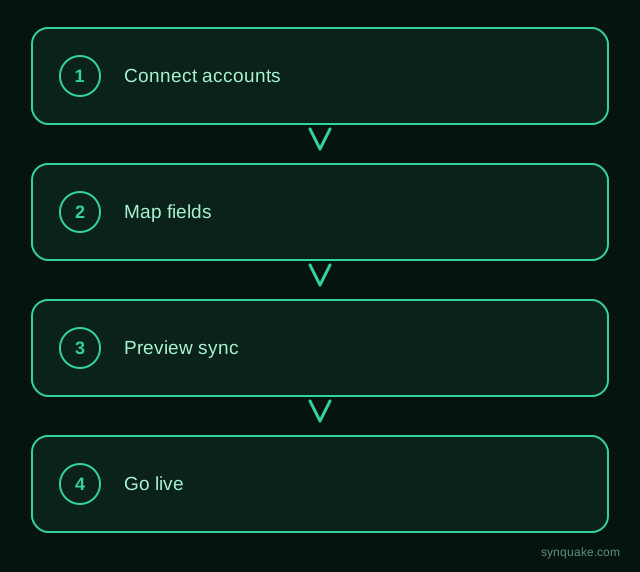
1. Connect both accounts
Add Contentful and Supabase as connections in Synquake. Contentful authorizes with a space API token; Supabase connects with a project URL and service key. Neither credential needs to be shared around the team or embedded in app code.
2. Pick what to sync
Choose the Contentful content type (e.g. Article, Product, Page) and the Supabase table you want it connected to. Most teams start with one content type, confirm the mapping, then add more.
3. Map fields visually
Draw the connections between Contentful fields (short text, rich text, references, media) and Supabase columns and types. Field types don’t need to match exactly up front — Synquake handles the conversion, including flattening Contentful rich text into a text or JSON column and resolving a reference field into a foreign-key-style ID column.
4. Choose sync direction
Pick one-way (Contentful → Supabase, the common case for feeding app data) or two-way sync, so changes made directly in Supabase — from an admin panel or a Lovable app’s own editing flow — push back into Contentful. Two-way sync is included on every Synquake plan, not a paid upgrade.
5. Preview before going live
Run a preview sync against a handful of real entries first. Confirm rich text, references, and media fields land in the right columns and types before enabling continuous sync.
6. Turn on live sync
Once the preview checks out, enable scheduled or real-time sync. From here, a new or updated Contentful entry flows into the Supabase table automatically, with no manual export-import step and no custom sync code to maintain.
Common Contentful–Supabase sync scenarios
- Content-backed apps. A Lovable or custom-built app queries Supabase directly for Contentful-authored content, avoiding a Contentful API call (and its rate limits) on every page load.
- Joining content with app data. A Supabase table synced from Contentful can be joined in SQL with user, order, or activity tables that live only in Supabase — something the Contentful API alone can’t do.
- Editorial workflow, app delivery. Editors keep working in Contentful’s structured editor; engineers build against a plain Postgres table that updates itself as Contentful content changes.
- Content audits. A Supabase table mirroring every Contentful entry’s status and last-updated date supports reporting via SQL or a dashboard, without querying Contentful directly.
Avoiding common sync problems
- Rich text in a flat column: Decide up front whether Contentful rich text syncs into Supabase as plain text, Markdown, or JSON — editing a flattened field back in Supabase and syncing it to Contentful can lose formatting if the two sides don’t agree on a format.
- Reference fields: A Contentful reference field needs a stable identifier (entry ID or slug) in Supabase, not a free-text description, so Synquake — and your app’s own queries — can resolve it to the right row.
- Schema mismatches: Add a new field in the Contentful content type and the matching Supabase column at the same time; a column that doesn’t exist yet will drop that field on sync rather than silently guessing a type.
- Duplicate rows: Set a stable matching field (the Contentful entry ID is the safest choice) so re-running a sync updates the existing Supabase row instead of inserting a new one.
Beyond Contentful and Supabase
Synquake’s sync is any-to-any across nine platforms — Airtable, Webflow, WordPress, Supabase (including Lovable-built apps), Wix, Shopify, Squarespace, Google Sheets, and Contentful — plus CSV import on every plan. The same Contentful space you sync with Supabase can also feed a Webflow CMS Collection or an Airtable base for editorial planning, without building a separate integration for each. See the full integrations page for details, or read how it works for the connection, mapping, and monitoring model.
Related reading
- How to Sync Contentful and Airtable Without Code
- How to Sync Contentful and Webflow Without Code
- How to Sync Contentful and Google Sheets Without Code
Get started
Syncing Contentful and Supabase without code turns a one-time migration script into a live connection that keeps app data current. Start your first Contentful-to-Supabase sync free and preview it against real entries before going live.